

Warehouses
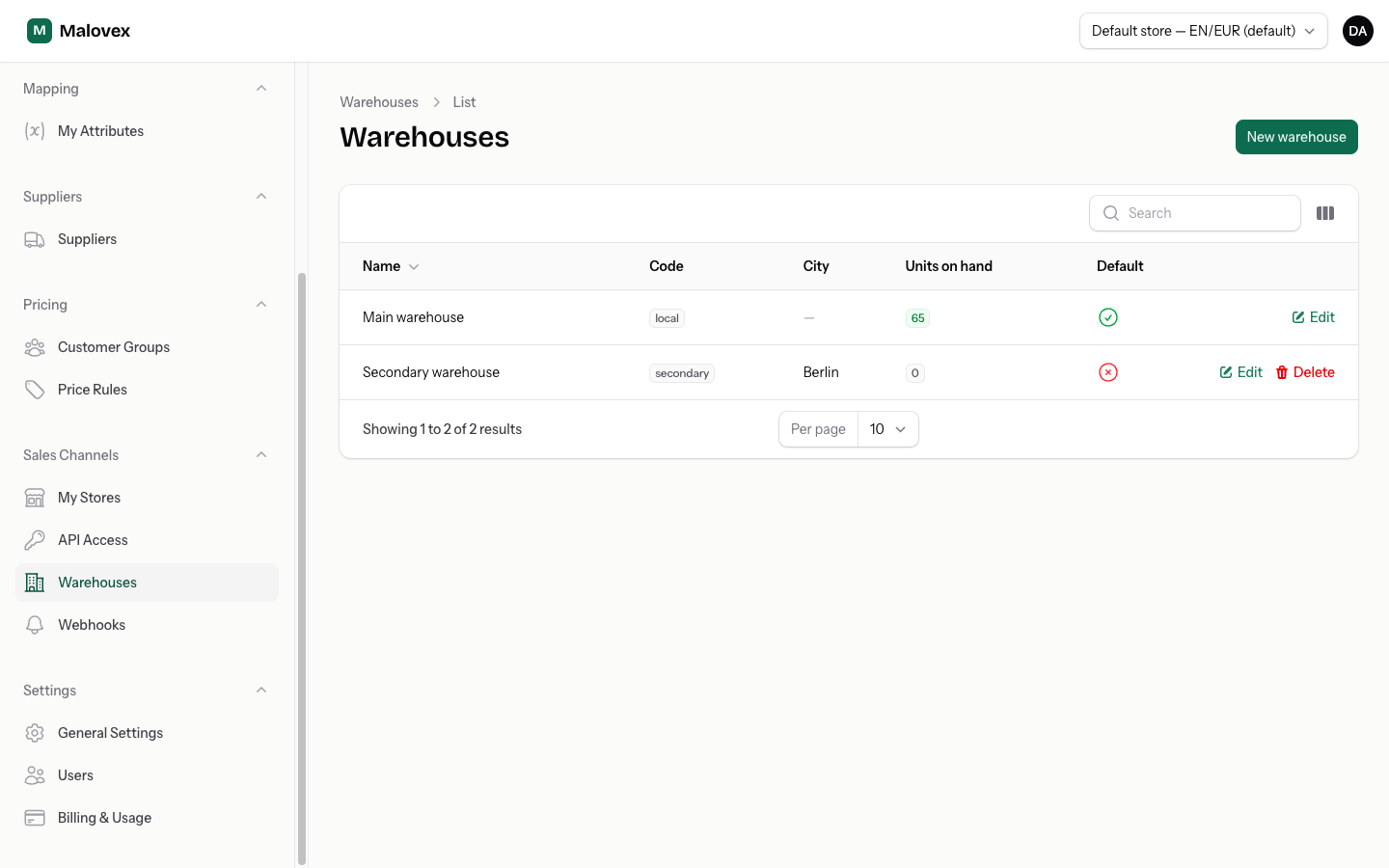
Warehouses are your own storage locations. Malovex uses them to track the stock you hold yourself — the inventory you sell before drawing on your suppliers. If you only ever sell straight from supplier stock, you can leave warehouses alone; they matter once you start holding your own inventory.
You’ll find them under Sales Channels → Warehouses.
Your default warehouse
Section titled “Your default warehouse”Every account has a Main warehouse to start with. It’s created automatically the first time you need it, so you never begin with nothing. Any stock you set without choosing a specific location goes here.
The default warehouse is marked with a Default flag, and its code is fixed — you can’t rename its code or delete it, because your existing stock records point at it.
Adding a warehouse
Section titled “Adding a warehouse”If you hold stock in more than one place, add a warehouse for each location.
-
On the Warehouses page, select New warehouse.
-
Enter a name (for example, “Riga store” or “Central depot”). Malovex suggests a code from the name automatically.
-
Adjust the code if you like. It’s a short, stable identifier attached to every stock record for that location, so pick something you won’t want to change later. Each code must be unique within your account.
-
Optionally fill in the address, city, postal code and country.
-
Choose whether this warehouse should be the default — the one new stock records use when no location is chosen.
-
Save.
Units on hand
Section titled “Units on hand”The warehouses list shows a Units on hand figure for each location: the total stock you’re holding there across all products. It’s a quick way to see which locations actually carry inventory.
To set stock for a specific product at a warehouse, use Adjust stock on that product — see Your Own Stock.
Deleting a warehouse
Section titled “Deleting a warehouse”You can delete any warehouse except the default one. To keep your stock figures honest, Malovex won’t let you delete a warehouse that still holds inventory: