

Users, Roles & Permissions
Bring your team into Malovex and give each person exactly the access they need. This page covers the two roles, the six permissions members can hold, and the rules that keep your workspace safe.
Every user in your workspace is one of two roles:
- Owner — full access to everything, including billing, users, and settings. Owners aren’t restricted by permissions; they can do it all.
- Member — a team member whose access is limited to the specific permissions you grant them. Members never see billing.
Your workspace always has at least one owner — that’s the person who signed up. You can promote members to owner, or invite additional owners, whenever you like.
Permissions
Section titled “Permissions”Members hold one or more permissions. Each permission unlocks a specific area of the workspace:
| Permission | Grants access to |
|---|---|
| Manage catalog | Products, categories, and stores |
| Manage attributes | Export attributes |
| Manage pricing | Price rules and customer groups |
| Manage suppliers & feeds | Supplier connections and feed sync |
| Manage users | Inviting and editing team members |
| Manage settings & API access | Workspace settings, SKU patterns, and API tokens |
Owners implicitly hold all six — you only assign permissions to members.
Invite a team member
Section titled “Invite a team member”You need the Manage users permission (or be an owner) to do this.
-
Click Users in the sidebar, under Settings.
-
Select New user.
-
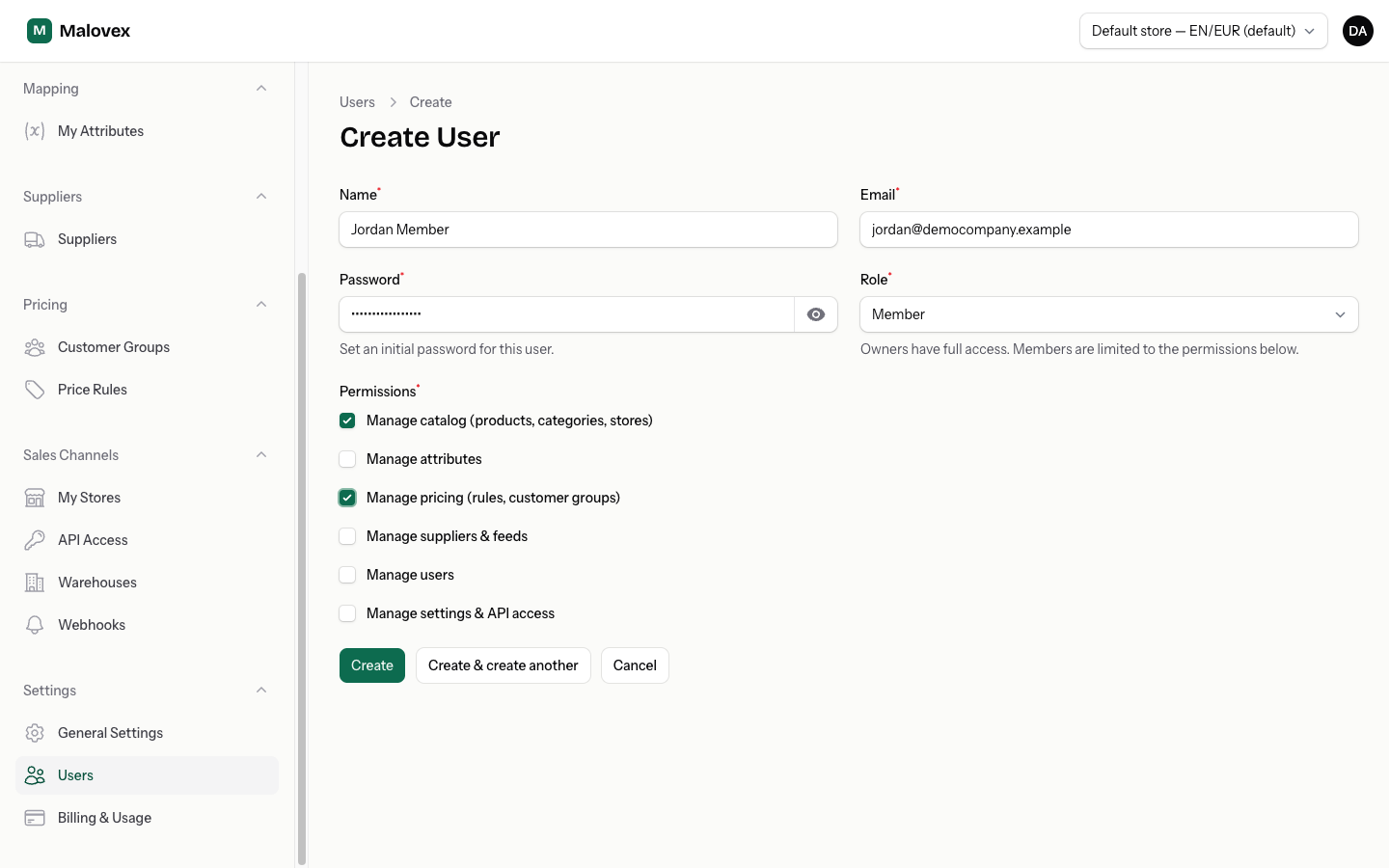
Fill in the form:
- Name and Email for the person you’re inviting.
- Password — set an initial password for them; they can change it after signing in.
- Role — choose Member (or Owner for full access).
- Permissions — if you chose Member, tick the areas they should be able to manage. Pick at least one.
-
Select Create.
Edit or change a member’s access
Section titled “Edit or change a member’s access”Open Users, select the person, and adjust their role or permissions. To change someone’s password, enter a new one; leave the password field blank to keep their current password unchanged.
Remove a team member
Section titled “Remove a team member”From the Users list, use the delete action on the person’s row. Two safeguards apply:
- You can’t delete yourself. Ask another user with the Manage users permission, or an owner, to remove your account.
- You can’t remove the last owner. Every workspace must keep at least one owner. If you’re trying to remove the sole owner, promote someone else to owner first.