

Your Own Stock
Alongside the stock your suppliers report, Malovex lets you record inventory you hold yourself. Your own stock takes priority: while you have units on hand, a product sells from your inventory at your cost before Malovex falls back to supplier stock. See Sell-Own-First for exactly how that works.
You set your own stock product by product, using Adjust stock.
Set stock for a product
Section titled “Set stock for a product”-
Open the product from My Products and go to its detail page.
-
Select Adjust stock.
-
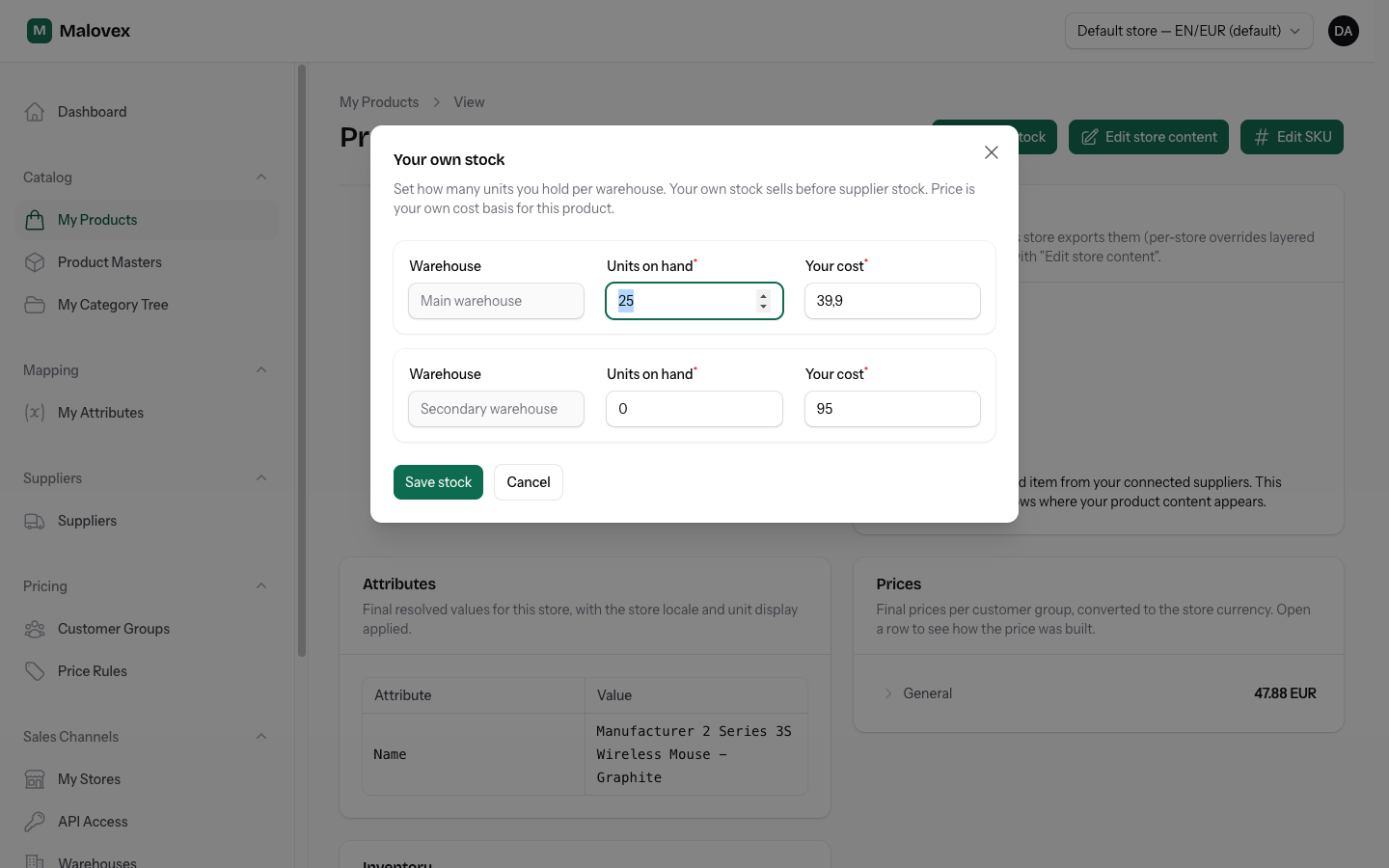
For each warehouse, enter:
- Units on hand — how many you’re holding at that location.
- Your cost — what the product costs you. This becomes your cost basis for the product while you’re selling your own stock.
-
Save. Malovex records your stock per warehouse.
Any product, feed or custom
Section titled “Any product, feed or custom”You can set your own stock on any product you sell — one that came from a supplier feed just as much as a custom product you created yourself. Feed products keep their supplier offers; your own stock simply sits alongside them and sells first.
Custom products are a natural fit here: a custom product has no supplier behind it, so its stock is always your own stock, set the same way through Adjust stock.
Stock across multiple warehouses
Section titled “Stock across multiple warehouses”If you’ve set up more than one warehouse, the Adjust stock form shows a row per location so you can split your holdings — for example 40 units in your main depot and 10 in a shop. Malovex adds them up: the product’s total own stock is the sum across every warehouse.
Removing your own stock
Section titled “Removing your own stock”To stop selling your own stock for a product, set its units on hand to zero. The product then reverts to selling from supplier stock automatically (for a feed product) — no other change needed. Zeroing stock everywhere is also the step to take before you can delete a warehouse that held it.