

Billing & Usage
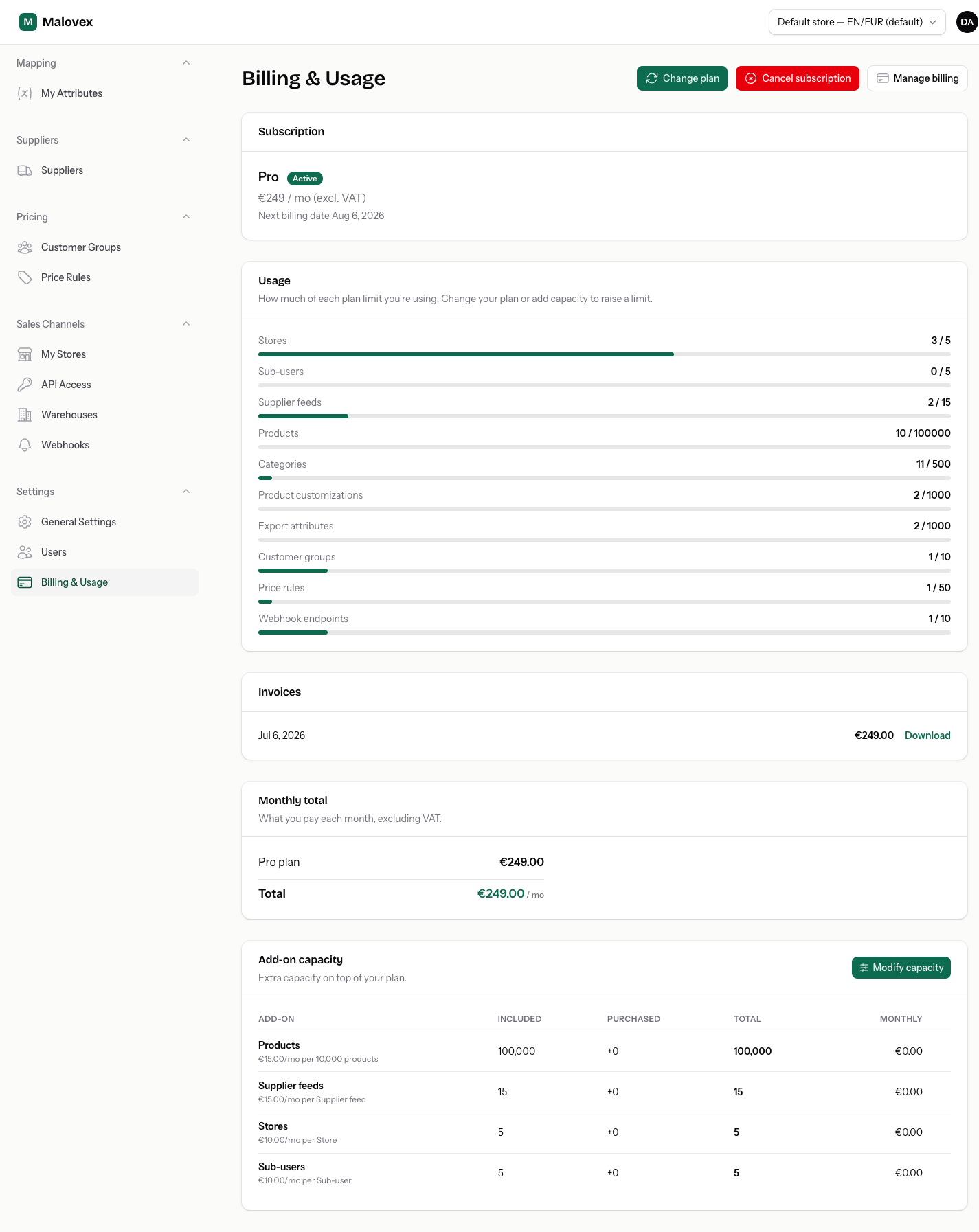
The Billing & Usage page is your one-stop hub for everything money- and quota-related: your current subscription, how much of your plan you’re using, your invoices, add-on capacity, and your payment method. Open it from Billing & Usage under Settings in the sidebar.
Subscription summary
Section titled “Subscription summary”At the top of the page you’ll see your current plan, its monthly price (excl. VAT), your subscription status, and your next billing date. If you’re on a free trial, this shows when your first charge lands; if you’ve cancelled, it shows the date your plan stays active until.
Usage meters
Section titled “Usage meters”Below the summary, a bar for each of your plan limits shows how much you’re using against your allowance — products, supplier feeds, stores, seats, categories, and the rest. The colours tell you where you stand:
- Green — comfortable, below 80% of the limit.
- Amber — either approaching the limit (80–99%) or exactly at capacity (100%). Being full is expected and fine; it isn’t an error.
- Red — over the limit. This can only happen after a downgrade left you above the lower plan’s allowance, and it’s the one to act on.
Your monthly total and invoices
Section titled “Your monthly total and invoices”The page shows your recurring monthly bill broken down as your plan price plus any add-on lines, then the total. Below that, your invoice history lists past invoices with their date and amount.
Add-on capacity
Section titled “Add-on capacity”You can top up the priced dimensions — products, supplier feeds, stores, and seats — with add-ons, without changing plans. In the Add-on capacity section, each dimension shows what’s included in your plan, how much you’ve purchased, the unit price, and your effective total. See Plans & add-ons for prices.
Modify capacity
Section titled “Modify capacity”Select Modify capacity to open one modal where you set the target quantity for each add-on. A live line-item total shows your new monthly bill and exactly what you’ll be charged today.
- Increases apply immediately. You’re charged a prorated amount for the days remaining in the current billing cycle, and the extra capacity is available at once. (If you’re on a trial, confirming an increase ends the trial and bills your first full period now.)
- Decreases take effect at your next renewal. You keep the capacity you’re paying for until then, so nothing is lost mid-cycle.
Cancel a scheduled reduction
Section titled “Cancel a scheduled reduction”Changed your mind about a scheduled decrease? Each add-on row with a pending reduction shows a Cancel reduction action. Use it to keep your current capacity and call off the scheduled drop.
Manage your payment method
Section titled “Manage your payment method”Select Manage billing to open the secure billing portal, where you can update your card and review payment details. This button appears once you have a subscription to manage.
Finishing or reactivating a subscription
Section titled “Finishing or reactivating a subscription”If you haven’t completed checkout yet — for example you closed the window during sign-up — the page shows a Finish setting up your subscription prompt with a Complete subscription button. If a past subscription has ended, you’ll see a prompt to reactivate; your data is safe and nothing has been deleted.
Changing or cancelling your plan
Section titled “Changing or cancelling your plan”Plan changes, cancellation, and resuming are all driven from this page too. See Cancel or change plan for the full walkthrough.